Browse Search Popular Register Upload Rules User list Login:
Search:
Video Test

Image:
screenshot of the scene

Author: unyel111

Group: Default

Filesize: 22.28 kB

Date added: 2026-05-15

Rating: 5

Downloads: 149

Views: 62

Comments: 11

Ratings: 1

Times favored: 0

Made with: Algodoo v2.2.4

Tags:

Scene tag

How this bassicly works is i made a black box moving, how i achieved it is simple
I made 8 frames total, each frame going from point A to B, then i putted theese images
right next to each other, and i made this frame (zoom in to fill it into the screen)
so you wont mix it up with others, i tried to make it good as possible, if you have any recommendations
feel free to comment them down below!
Please log in to rate this scene
edit
Similar scenes
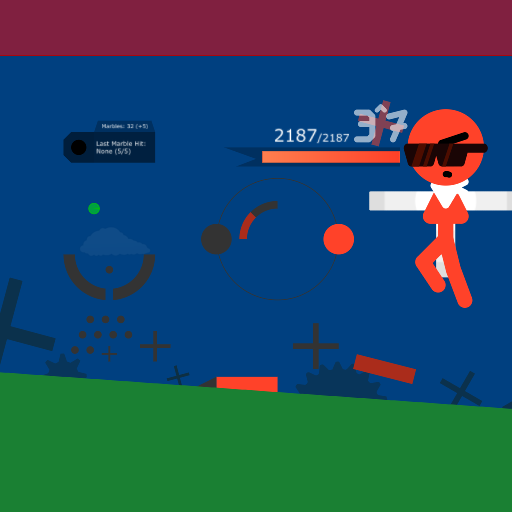
Title: Marble Siege test - vs 3tothe7thpower
Rating: 5
Filesize: 85.13 kB
Downloads: 2732
Comments: 2
Ratings: 1
Date added: 2021/12/30 04:15:30
Made with: Algodoo v2.1.0
Rating: rated 5
download
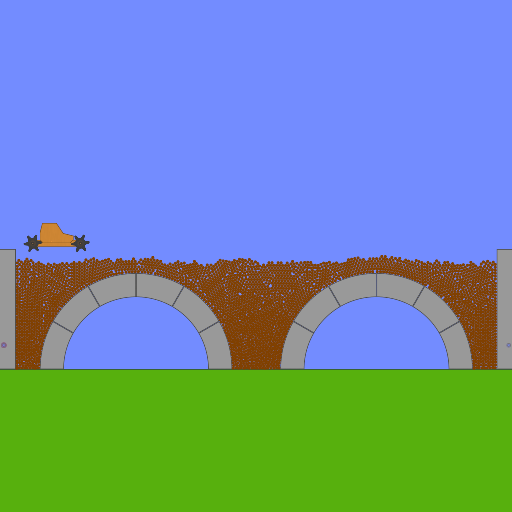
Title: FPS test and car :)
Rating: 5
Filesize: 450.94 kB
Downloads: 552
Comments: 0
Ratings: 1
Date added: 2019/03/21 16:57:29
Made with: Algodoo v2.1.0
Rating: rated 5
download
Title: 3d test
Rating: 5
Filesize: 10.9 kB
Downloads: 389
Comments: 1
Ratings: 1
Date added: 2025/11/01 09:56:52
Made with: Algodoo v2.2.4
Rating: rated 5
download
Title: Chimpanzee Memory Test
Rating: 5
Filesize: 1.49 MB
Downloads: 2156
Comments: 6
Ratings: 1
Date added: 2020/10/25 03:24:32
Made with: Algodoo v2.1.0
Rating: rated 5
download
Title: Shutter Crush (Playable Version)
Rating: 5.625
Filesize: 384.22 kB
Downloads: 6441
Comments: 5
Ratings: 2
Date added: 2023/04/20 07:10:06
Made with: Algodoo v2.2.1
Rating: rated 5.6
download
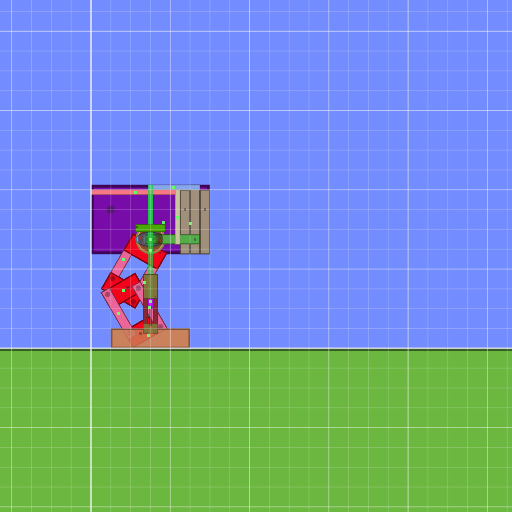
Title: Walker from timelaps video
Rating: 5.7778
Filesize: 25.78 kB
Downloads: 988
Comments: 1
Ratings: 3
Date added: 2010/06/08 03:48:39
Made with: Algodoo before v1.8.5
Rating: rated 5.8
download
Suggestion: 1. Get rid of that thruster. 2. line up the black frame with the first image. 3. Place the following script in postStep: pos = pos + [2.0, 0.0].

When you run the sim, the images will show correctly! Try it. :)
Hmmm. Ill try it Broski!
:lol:
Also where is poststep? Sorry im not that good at algodoo hehe
It's in the script menu:

Right click on the black box, then left click on "Script menu". After the script menu opens you will see "postStep". Next to postStep is its command input bar. In the bar you will see "(e)=>{}". You enter the scrip "pos = pos + [2.0, 0.0]" in between the curly brackets (be careful that you do not accidentally delete any part of "(e)=>{}"). After you enter the script it should look like the following: (e)=>{pos = pos + [2.0, 0.0]}

Then save the scene. That's all!
Oh, one more detail Broski: If the video looks like it's running too fast, you can move the Simulation Speed slider to a lower number (say, 0.5) after you reset the scene back to its beginning.

The Simulation Speed slider is right above the sim start/pause button at the bottom of the scene.

Easy Peasy! :lol:
Last edited at 2026/05/19 16:15:37 by Xray
cool! You can remake my scene too if you want to, i dont mind
Thanks for the offer but I was hoping that YOU would make those changes. The best way to learn is to do it yourself. If you make mistakes, great! That's how ya learn. :tup:
okay
you haven't fixed it yet unyel
I was thinking the same thing. :/